Ctrl, Esc and Tab on an Android terminal, without the pain
toolbarterminalandroidssh-clientproductivity
The single worst thing about a terminal on a phone is not the small screen. It is the keyboard. A software keyboard has no Ctrl, no Esc, no Tab, no arrows and no function keys, and that is roughly the entire vocabulary of working in a shell. You cannot cancel a command, exit Vim, complete a path or scroll your history. Every Android terminal has to answer this, and most answer it with a fixed little strip of buttons someone else picked for you.
Dagon SSH takes a different line: the row of keys above your keyboard is yours to build.
What is there out of the box
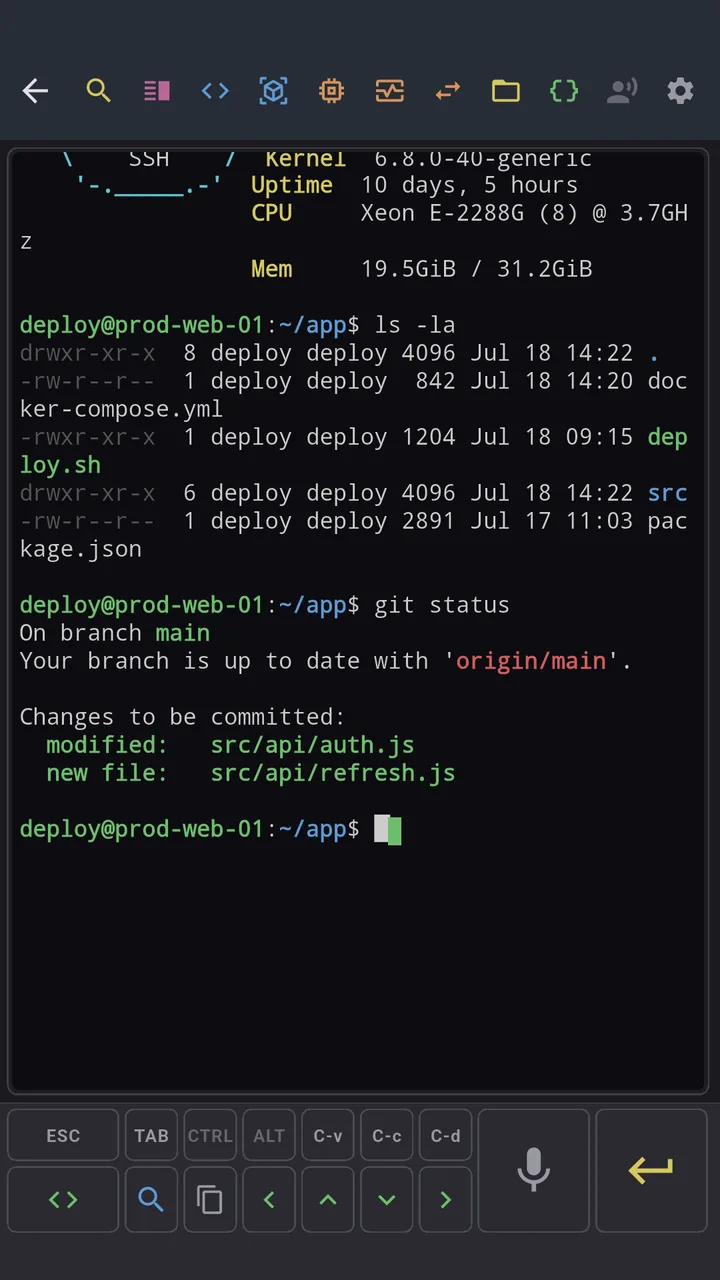
Straight after install the toolbar already carries the keys you reach for constantly:
- Esc, Tab, Ctrl, Alt as real keys.
- C-c and C-d as one tap each, because you send them a hundred times a day.
- Paste (sends Ctrl-V), arrow keys, and Enter.
- Mic for voice input, and shortcuts to Search, Copy mode and the AI agent.
Ctrl and Alt latch: tap Ctrl, then b, and the terminal gets Ctrl-B. So tmux prefixes, readline shortcuts and Vim commands all work with two taps and no gymnastics.
Then you rearrange it
Open the toolbar editor and it is a proper WYSIWYG grid, not a checklist. Drag buttons where you want them, resize them, add or remove whole rows, leave gaps if you like a bit of breathing room. Mic and Enter stay anchored across the bottom two rows so your muscle memory never moves, and any extra rows you add sit above them at full width. Do not like what you did? Reset to the default layout in one tap.
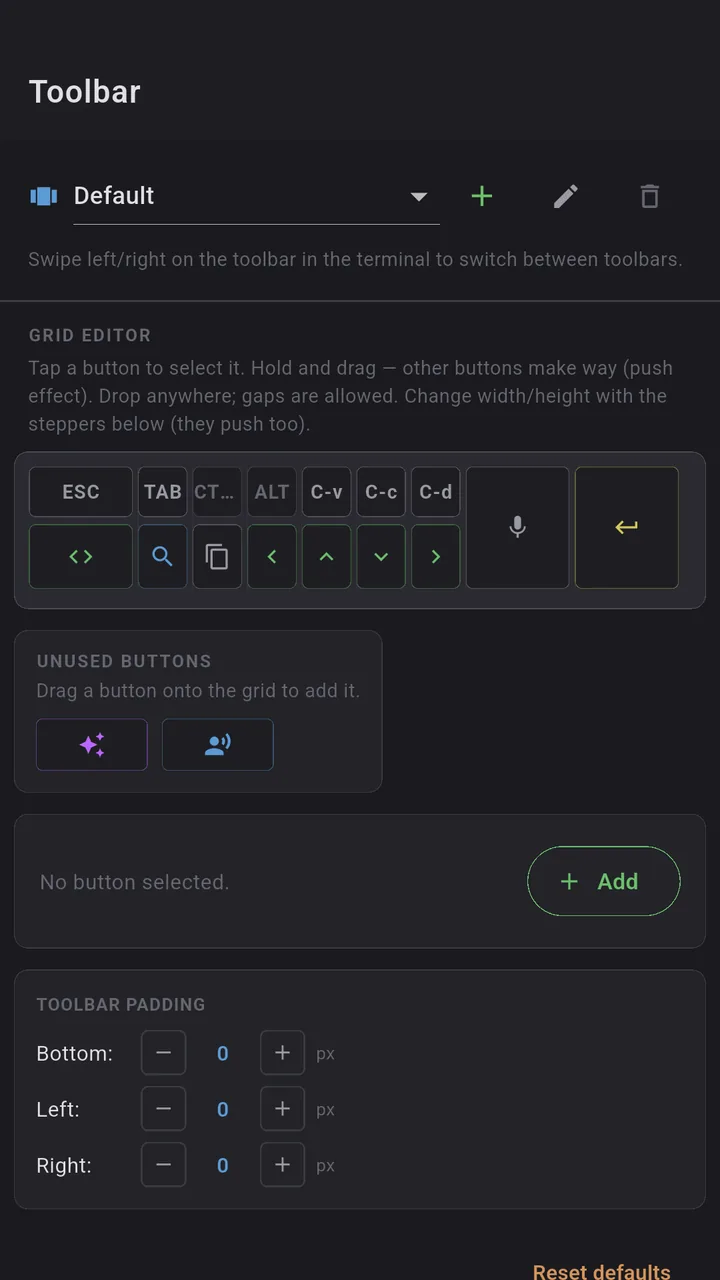
The point is that the keys you personally use end up under the thumb you personally use them with. Nobody's default is right for everybody, so it is not a default.
The part that actually changed how I work: layouts you swipe between
You are not limited to one toolbar. You can build several, name them, and swipe left or right on the toolbar in the terminal to switch. That sounds small and is not.
- A Vim layout with Esc, colon,
:wq,hjkland search. - A Docker or k8s layout with the flags and subcommands you always forget.
- A plain one for when you just want a shell and Enter.
Add a new toolbar as a copy of the current one, tweak it, rename it, and it is a swipe away. Same session, different cockpit depending on what you are doing.
Custom keys and snippets
Two buttons go beyond the built-in keys:
- A keystroke button sends any combination you define. Type
CTRL+Band now you have a one-tap tmux prefix. Anything you can express as a combo, you can pin. - A snippet button drops saved text into the terminal. Snippets live in folders, can be scoped per server, and each one is either a text command or a key combination, your choice. So
docker compose up -dandCtrl+B then %can both live one tap away.
The feature buttons
The same toolbar is where Dagon's heavier tools live, and you decide which show up: Git, Docker, PM2, SFTP, monitoring, the command palette, terminal split, port forwarding and voice notes. Turn on the ones you use, hide the rest so the bar stays clean. (Those tools are Premium; the toolbar itself, the keys and the snippets are part of the free terminal.)
Why it matters
Terminal work is muscle memory, and muscle memory hates a layout that someone else froze in place. Give it thirty seconds in the editor and the toolbar stops being a compromise and starts being faster than a laptop for the things you do most on a phone. That is the whole idea.
Where to get it
Dagon SSH is on Google Play. The terminal, the toolbar, keys and snippets are free with no time limit.
If there is a key or a combo the toolbar cannot express yet, tell me. Half of what is on there now started as someone saying "I wish I could put X on the bar".