How to SSH into a server from an Android phone
sshandroidtutorialssh-clientterminalssh-guidessh-from-android
You sit on a train, remember the build you left running, and want to check on it. Or a monitoring alert pings while you are away from your desk, and the fix is one command. You do not need a laptop to SSH into a server. Your Android phone is enough, and once it is set up it takes about ten seconds to get a shell.
This guide walks through the whole path from zero to a working remote shell on Android: installing a client, making your first connection, switching to SSH keys, and keeping the session alive when the phone moves between networks. We use Dagon SSH as the client because it is the one that handles the mobile parts (background killing, IP changes, reconnecting) for you, but the SSH basics apply to any client.
What you need first
- A remote server reachable over SSH. Most VPS and cloud hosts expose port 22 by default. If you changed the port, note it.
- Credentials for that server: a username and password, or an SSH key.
- The server's address: an IP like
203.0.113.10or a hostname likeweb.example.com. - An Android phone running Android 9 or newer.
That is it. No root, no terminal app, no USB cable. You are connecting from the phone, not to it.
Step 1: install an SSH client
The job of an SSH client on Android is to open a terminal session to a remote machine and show it on your screen. The Play Store has several. For this guide install Dagon SSH:
- It keeps the session alive in the background (Android otherwise kills the app the moment you lock the screen).
- It reconnects automatically when your network drops and comes back.
- It supports SSH keys, tmux and Mosh out of the box, so you do not outgrow it once you want the advanced parts.
Search "Dagon SSH" on the Play Store, or go to dagon-ssh.it and follow the install link. Open it once after installing so it can set up its local storage.
Step 2: add your first connection
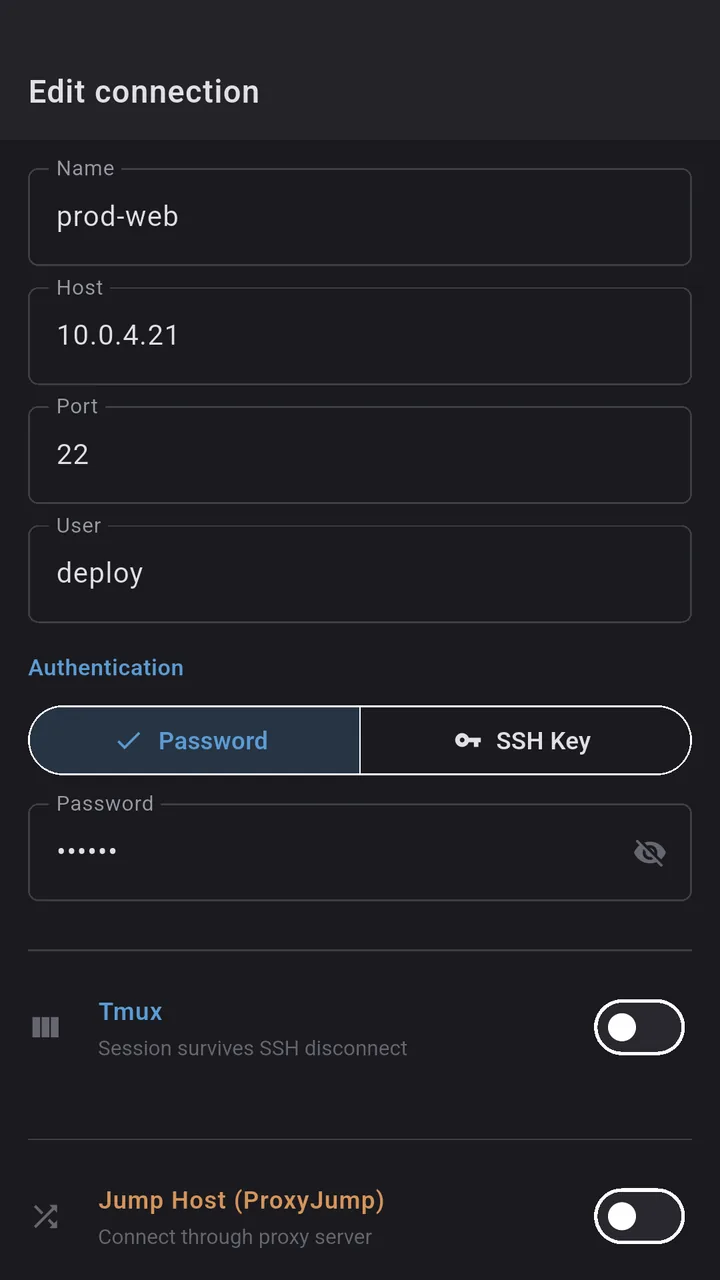
Open Dagon SSH and tap the plus button to add a new host. You are asked for a few fields:
- Host: the server's address, for example
203.0.113.10orweb.example.com. - Port:
22unless your server uses a custom port. - Username: the account you log in as, for example
rootordeploy. - Password or key: start with the password if that is what the server gave you. We switch to a key in the next section.
Give the connection a name you will recognise later, like "staging" or "home server", and save. Tap it to connect. The first time you connect to a host you will see a prompt about the server's fingerprint. That is normal. Your phone has never seen this server before and is asking you to confirm it is the right one. Accept it. A second later you are at a shell prompt on the remote machine.
Try it:
`` whoami uname -a pwd ``
If those print your username, the server's kernel info and a directory path, congratulations: you are SSHing into a server from your phone.
Step 3: switch to an SSH key (do this early)
Passwords work, but they have two problems on a phone: typing a long password on a touchscreen is painful, and a password sent over the network (even encrypted) is still a thing you type every time. An SSH key fixes both. You authenticate once by having the key, not by typing.
The cleanest flow on Android is to generate the key on the server and let Dagon use it:
1. Connect with your password one more time. 2. On the server, generate a key pair if you do not already have one: `` ssh-keygen -t ed25519 -f ~/.ssh/dagon_phone ` Press Enter through the prompts. This creates dagon_phone (the private key) and dagon_phone.pub (the public key). 3. Authorise the public key for logins: ` cat ~/.ssh/dagon_phone.pub >> ~/.ssh/authorized_keys chmod 600 ~/.ssh/authorized_keys ` 4. Pull the private key onto your phone. The simplest way is to display it on the server, copy it, and paste it into Dagon's key field when you edit the host: ` cat ~/.ssh/dagon_phone ` Copy the whole block, including the -----BEGIN and -----END` lines. 5. In Dagon SSH, edit the host, switch auth from Password to Key, and paste the private key. Save and reconnect.
You should now log in with no password. If it still asks for one, the usual culprit is the server's permissions: ~/.ssh must be 700 and authorized_keys 600, and your home directory must not be world-writable. SSH is strict about this and fails silently to a password prompt instead of telling you.
Step 4: keep the session alive on mobile
This is the part that bites everyone the first time. You connect, start a long apt upgrade, lock the phone, and come back to a dead session two minutes later. There are two reasons and two fixes.
Android killed the app in the background. Dagon SSH runs a foreground service while a session is open, the same mechanism a music player uses to keep playing with the screen off, so the connection keeps breathing when you lock the phone or switch apps. As long as you see the persistent notification, the session is alive.
Your IP changed. SSH runs over a single TCP connection, and TCP does not survive your IP changing. Walk from WiFi to mobile data and the socket is gone. Dagon reconnects on its own when this happens, up to five attempts with increasing backoff, and it only fires when the drop was not your doing: close the session yourself and it stays closed.
For anything longer than a quick command, run tmux on the server before you start:
`` tmux new -s work ``
Now your shell lives on the server, not in the phone's connection. If the connection drops entirely, reconnect and Dagon re-attaches to the same work session, your running command and scrollback intact. If your server has mosh-server installed, Dagon upgrades to Mosh automatically, which was designed to survive a changing IP and long sleeps. Mosh is the smoothest option; tmux is the one that always works.
In short, the foreground service keeps the app alive, auto-reconnect fixes brief drops, tmux survives long outages. Use all three.
Step 5: actually do something
Once connected, the phone is a normal terminal. A few things worth knowing on a small screen:
- Pinch to zoom changes the font size. Make it big enough to tap accurately before you start typing.
- The on-screen keyboard has a toolbar above it with the keys you use most:
Tab,Ctrl,Esc, arrow keys. UseCtrlthenCto interrupt a command,CtrlthenDto log out. - For anything repetitive, paste it. Dagon has a snippets feature for commands you run often, so you store them once and tap to insert.
A realistic first session is three commands. Check disk space, look at the load, tail a log.
`` df -h uptime tail -f /var/log/syslog ``
Stop the log tail with Ctrl + C. Log out with Ctrl + D or by typing exit.
When it does not work
A short troubleshooting list, because the same three problems account for almost every failed connection:
- "Connection refused": the server is not listening on that port, or a firewall is blocking it. Check the port number and that SSH is running on the server (
systemctl status sshdfrom another machine). - "Permission denied" with a password: wrong username or password. Check that you did not paste a trailing space, and that the username exists on the server.
- "Permission denied" with a key, falling back to password: the key is right but the server's permissions are wrong. Fix
~/.sshto700,authorized_keysto600, and make sure your home directory is not group- or world-writable. - Hangs after connecting, then drops: often a firewall that allows the TCP handshake but drops the data, or an aggressive mobile carrier NAT. Mosh sidesteps both if the server has it.
What you have now
You can open a shell on a remote server from anywhere, authenticate with a key instead of a password, and keep the session alive through phone lock and network switches. That is the whole skill. Everything else (port forwarding, git over SSH, editing files on the server) is just normal SSH, and it all works the same from the phone.
If you want to go further, the next two steps are setting up Mosh for a connection that does not care about your IP changing, and tmux for sessions that outlive any single connection. Both are built into Dagon SSH and need no extra app.