SSH snippets on Android: save the commands you keep retyping
snippetssaved-commandsandroidssh-clientproductivity
Some server commands come back every week, and none of them are short. docker compose -f docker-compose.prod.yml logs -f --tail=200 api. journalctl -u nginx --since "1 hour ago" --no-pager. sudo systemctl restart php8.3-fpm. On a laptop that is a few seconds of typing, or Ctrl+R. On a phone it is a minute of fighting autocorrect, and one wrong character in a service name means doing it again.
A snippet is the fix. You save the command once with a name, and from then on it is a tap away in the terminal.
What you can do without an app feature
There are a few ways to get there without anything special in the SSH client, and they are worth knowing.
Shell aliases on the server. alias plogs='docker compose -f docker-compose.prod.yml logs -f --tail=200 api' in ~/.bashrc makes the command short everywhere you log in. It works well for one server. With ten servers you either copy the same dotfiles everywhere or remember which alias lives where.
History search. Ctrl+R finds the last time you ran something. That needs a Ctrl key, it only knows what this server's history file still has, and on a fresh machine it knows nothing.
Scripts in ~/bin. Good for things with logic in them. Overkill for a single journalctl line.
These all live on the server. A snippet lives in the app, so the same list follows you to every machine, including the one you set up five minutes ago.
How snippets work in Dagon SSH
You manage them from the menu on the server list (Snippets), or from Settings, then Terminal. They are grouped in folders, and each folder has a scope.
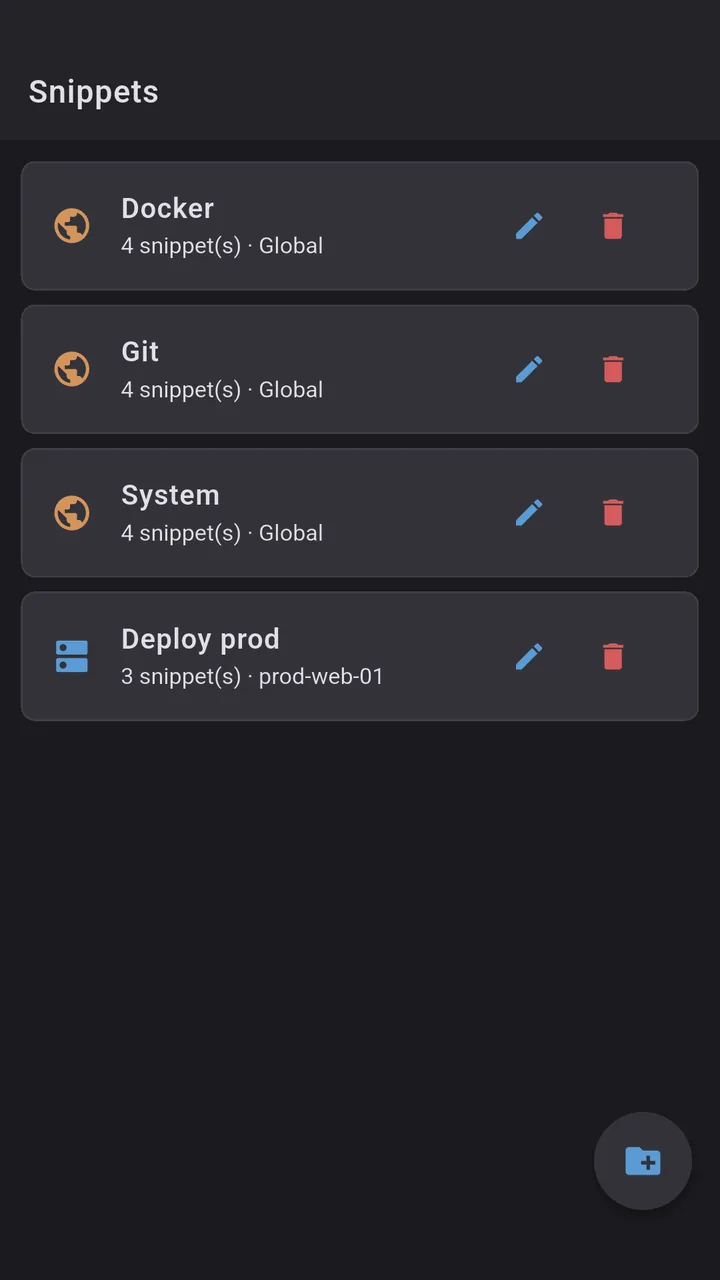
A global folder shows up on every connection. That is where df -h, htop and the Docker basics go. A server folder is tied to one connection profile, so the deploy commands for prod-web-01 stay out of the way when you are on the home NAS. If you delete a server that has its own folders, the app asks what to do with them: delete them, move them into another folder, or make a new group out of them.
A snippet is a name and a command. The command field is multi-line, and the list shows it in monospace so you can see what you are about to send.
Parameters for the part that changes
Plenty of commands are the same except for one word. Restarting a service, tailing logs for one container, checking out a branch. Instead of saving five copies, you put the changing part in double braces:
`` docker compose logs -f --tail=200 {{service}} git fetch && git checkout {{branch}} && git pull ``
As soon as you type {{service}} into the command, the editor adds a row for that parameter, where you can give it a list of options, for example api, worker and nginx. When you run the snippet, a small dialog asks for the values. A parameter with options gets a dropdown with the first one preselected and an "Other..." entry if you need something that is not on the list. A parameter without options is a plain text field. Snippets without parameters skip the dialog.
Keystroke snippets
Not everything you repeat is a command. Sometimes it is a key combination: the tmux prefix and a letter, or screen's detach. A snippet can be switched to Keystroke mode, and then the text is read as keys instead of typed as characters:
`` {CTRL}+B C new tmux window {CTRL}+A D detach from screen {CTRL}+B {LEFT} previous tmux pane ``
Modifiers go in braces and are joined with +, a space separates key presses, and \r is Enter. The arrows are sent through the terminal emulator itself, so vim and tmux get the escape codes they expect. If you would rather have a combo as a permanent button on the toolbar, the same syntax works for custom toolbar buttons, which the terminal toolbar post covers.
Running one from the terminal
The snippets button on the terminal toolbar opens a picker: folders first, then the snippets inside. Global folders and the ones for the server you are on come first, with the other servers' folders listed below them. If you never use snippets, the button can be hidden in Settings.
Know this before you rely on it. Tapping a command snippet sends it and presses Enter, so it runs right away. For anything destructive, make it a parameter snippet so you get a dialog to look at first, or keep it out of the list.
Snippets sync through your Dagon account when you are signed in, so the list on a new phone is the same one you built on the old one. Connection passwords are not part of that sync.
What it is not
- Not a script runner. There is no conditional logic, no loops, and no way to run one snippet across several servers at once. For that, a script on the server or a tool like Ansible is the right answer.
- Not a scheduler. A snippet runs when you tap it, in the terminal you are looking at.
A phone session
An alert says the API on prod-web-01 is returning errors. You connect, open the snippets button and go into the Deploy prod folder. logs asks for {{service}}, the dropdown already says api, you tap run and the logs start streaming. The error points at a stale worker, so you go back into the folder, pick restart with worker in the dropdown, and check the logs again. Nothing was typed on the keyboard.
Where to get it
Dagon SSH is on Google Play. Every new account gets 60 days of everything, no card.
Snippets are in the free plan too. After the trial it keeps ten of them, counted in the order you created them. The rest are not deleted. They show greyed out, and Premium, which removes the cap, brings them back.
If there is a command you would want as a snippet but the format cannot express it, send it to me and I will look at what is missing.