SFTP client for Android: browse, edit and move server files from your phone
sftpandroidssh-clientfile-manager
Most of what I do on a server from my phone is not typing commands. It is files. Pull a log down to send to someone, check what a config actually says, fix one wrong port number, drop a file into a web root. You can do all of it with cat, nano and scp in a terminal, and on a phone keyboard you will hate every minute of it.
That is what an SFTP client on Android is for: a file manager that talks to your server over SSH, so you tap through directories instead of typing paths.
What SFTP is, in one paragraph
SFTP is file transfer that runs inside an SSH connection. If you can SSH into a server, you can almost certainly SFTP into it too, with the same login. Nothing to install. No extra port. That alone is the reason to prefer it over FTP, which sends your password in the clear and needs its own service running.
Standalone SFTP apps vs SFTP inside your SSH client
There are two ways to get SFTP on Android.
A standalone file manager with SFTP support. Several Android file managers can mount an SFTP server next to your local storage. They are good at moving files between phone and server, and if that is all you ever do, one of them is enough.
SFTP built into your SSH client. The file browser runs over the SSH connection you already have open, same host, same key, and if you reach the server through a jump host, the same route. You are in a terminal, you need a file, you open the browser on the same server without setting anything up twice. This is how Dagon SSH does it, and the rest of this post is about that.
Opening files where you already are
The small thing that matters most is where the browser opens. Start it from a terminal session and it lands in the directory your shell is in. You cd into /var/log/nginx, you open files, and you are looking at /var/log/nginx, not at your home directory with five folders to tap through.
For places you visit all the time, there are bookmarks. Star the current path and it is saved for that connection, so /etc/nginx/sites-available on one server and /home/deploy/app on another are one tap away.
Browsing
The path at the top is a breadcrumb, and every segment is tappable, so going up three levels is one tap.
There are three views. The detailed list shows size, permissions and date. The compact one is just names, for scanning a long directory fast. The grid shows thumbnails. Pinch to zoom changes the text size in the lists and the number of columns in the grid.
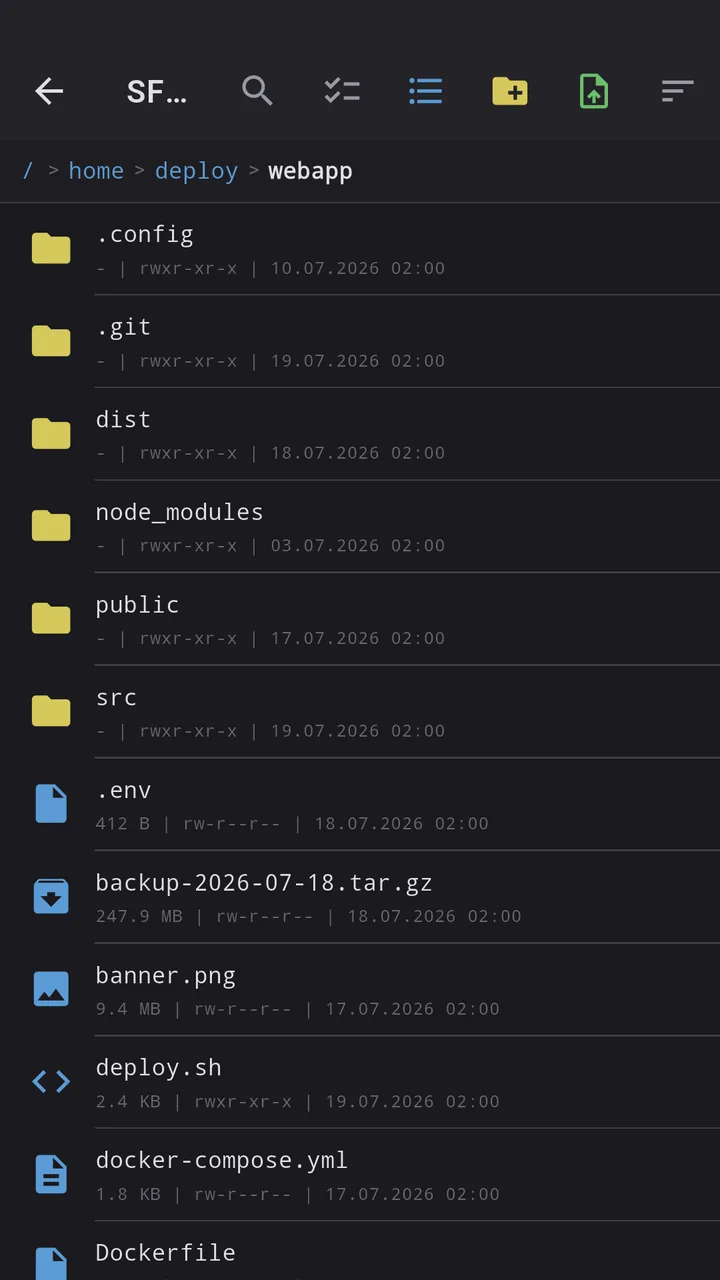
You can sort by name, size or date, either direction, with folders always on top, and a search field filters the current directory by name. When you are hunting for the newest log in a folder of three hundred, sort by date and you are done.
Viewing and editing files
Tap a file and Dagon opens it with something sensible instead of asking you to download it first:
- Text files (50+ extensions: configs, scripts, logs, source code) open in a viewer with line numbers and selectable text. Switch to edit mode, change what you need, save. If you try to leave with unsaved changes, it asks whether to save, discard or stay.
- Markdown renders as formatted text, with a toggle to see the raw source.
- Images open full screen with zoom, and you can swipe through the other images in the same folder. Thumbnails load automatically for images up to 8 MB.
- Mermaid diagrams (
.mmd,.mermaid) render as diagrams, which is handy if your docs live on the server.
The editor is meant for quick fixes, a port number, an allow line, a typo in a cron entry. For refactoring a 2,000 line file you still want a desktop editor.
Moving files around
- Upload a file from the phone into the current directory, with a progress bar.
- Download a file into a folder you pick on the phone.
- Rename, delete or create a folder from a long press.
- Multi-select for batches: select files, then download, move or delete them all at once. A move is an SFTP rename on the server, so it is instant on the same filesystem, even for big files. If some files in a batch fail, the rest still go through and you get a summary of what worked.
Multi-select is recent. Batch download landed in late August 2026 and batch move and delete a few days after, so if you tried Dagon's file browser earlier and gave up on it because everything was one file at a time, it is worth another look.
What it is not
- Not a sync tool. It does not keep a folder on your phone mirrored with a folder on the server. For that, use something like Syncthing.
- Not a directory copier. Batch actions work on files; folders are skipped in multi-select. To copy a whole tree,
tarit in the terminal and download the archive. - Not FTP. Only SFTP over SSH. If your host only offers plain FTP, this is the wrong tool.
A phone session
A deploy went wrong, someone asks for the error log. You SSH in, cd /var/log/myapp, open the file browser, it is already in the right directory. Sort by date, long press the newest log, download, share it in the chat. Then you notice the config has the wrong upstream port, open it, fix one number, save, restart the service in the terminal. Two minutes, no laptop.
Where to get it
Dagon SSH is on Google Play. Every new account gets 60 days of everything, no card.
After that, the free tier keeps the terminal and a read-only file browser, so you can still browse and preview files on the server without paying. Changing anything (download, upload, edit, rename, move, delete) is Premium, together with the Git, Docker and monitoring screens.
If there is a file task you still do in the terminal because the browser cannot do it, tell me which one.