SSH keys on Android: generate, import and use them from your phone
ssh-keysed25519androidssh-clientsecurity
A password login from a phone means opening the password manager, copying a long random string, switching back to the SSH app and pasting it. Every time, for every server. Or you pick a shorter password you can type, which is worse.
Keys fix that. The server stores a public key, the phone keeps the private one, and logging in is a tap. They are also what most servers should require anyway, since a key cannot be guessed by a bot hammering port 22 the way a password can.
The short version of how keys work
A key pair has two halves. The private key stays on the device you log in from and never leaves it. The public key is one line of text that you add to ~/.ssh/authorized_keys on the server. When you connect, the server checks that you hold the private half that matches one of those lines. Nothing secret goes over the wire.
On a laptop you would run:
`` ssh-keygen -t ed25519 -C "phone" ssh-copy-id deploy@prod-web-01 ``
On Android there is no ssh-keygen unless you install a Linux environment, so the SSH app has to do this part itself.
New key or the one from your laptop?
You have two honest options.
Generate a new key on the phone. This is what I would recommend. The phone gets its own key, you add it to the servers it needs, and if the phone is lost you remove that one line from authorized_keys and nothing else changes. Your laptop key keeps working.
Import the key you already use. Faster if you have twenty servers that already trust your laptop key. The price is that the same private key now lives on two devices, and losing the phone means rotating it everywhere.
Ed25519 is the type to pick for a new key. The keys are short, and OpenSSH has supported them since 2014. RSA still makes sense for old systems that do not know Ed25519.
How it works in Dagon SSH
Keys live in Settings, then Terminal, then SSH Keys. The connection form also has a "Manage keys" link next to the key picker, so you can get there while setting up a server.
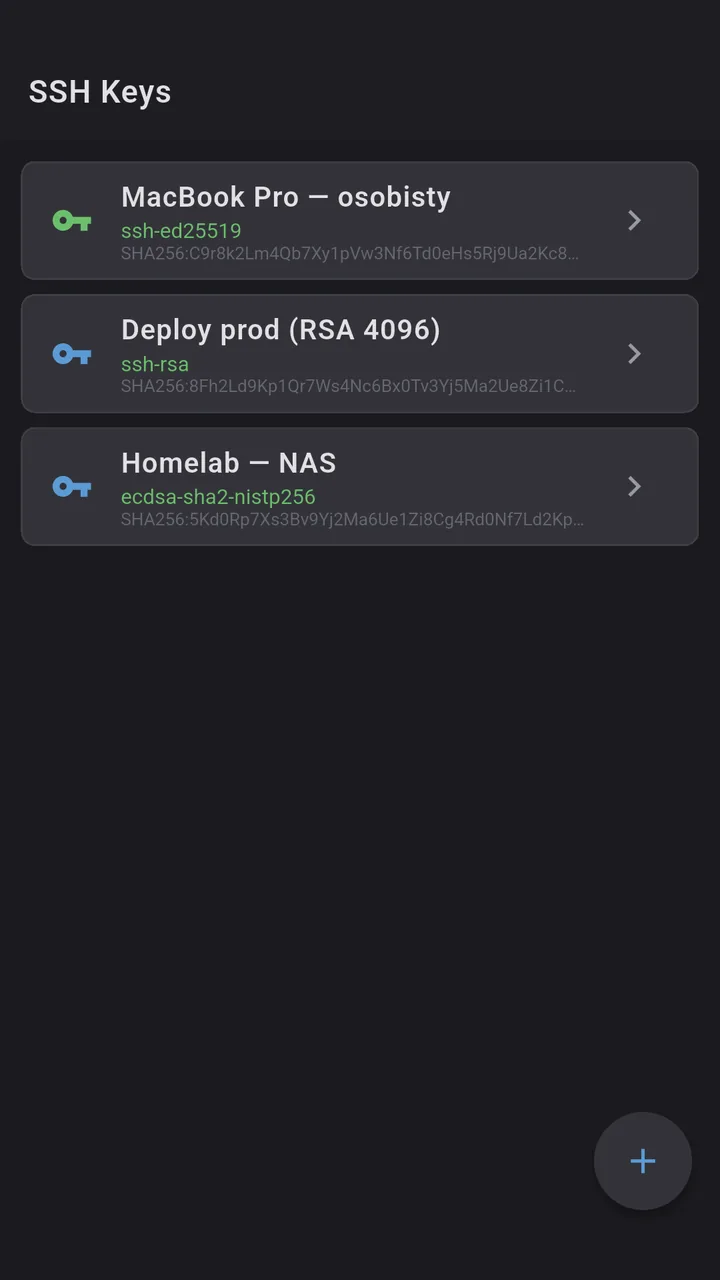
The plus button gives three choices:
- Generate Ed25519. You name the key and the app creates it on the phone. The private key is written in the standard OpenSSH format, so it is an ordinary key, not something tied to the app.
- Import from file. Pick a private key file. It reads RSA, Ed25519 and ECDSA keys in PEM text form, including ones protected with a passphrase, which it asks for during import. A PuTTY
.ppkfile is a different format, so convert it withputtygenfirst. - Import from clipboard. Paste the private key text. Useful when the key sits in a password manager.
The list shows each key's name, type and SHA-256 fingerprint. Tap one and you get the details: whether the key is encrypted with a passphrase, when it was added, and the public key as a single authorized_keys line with a "Copy public key" button.
To use a key, open the server in the connection form, switch authentication from Password to SSH Key and pick it from the dropdown. If the server sits behind a jump host, the jump host has its own password or key choice, so the bastion and the target can use different keys.
Getting the public key onto the server
There is no ssh-copy-id button. You log in once with the password, then:
1. Open the key, tap "Copy public key". 2. In the terminal, run mkdir -p ~/.ssh && chmod 700 ~/.ssh. 3. Append the pasted line: echo 'ssh-ed25519 AAAA... phone' >> ~/.ssh/authorized_keys. 4. Run chmod 600 ~/.ssh/authorized_keys. 5. Edit the connection, switch it to SSH Key, and connect again.
If the second login works, you can turn password logins off in sshd_config (PasswordAuthentication no). Keep the existing session open while you test that, in case you locked yourself out.
Where the key is stored
The private key and its passphrase go into Android's secure storage through flutter_secure_storage, which encrypts them with a key held by the Android Keystore. Only the metadata you see in the list sits in normal app preferences. Keys are not uploaded to the Dagon account sync.
Two things to know. A key generated in the app has no passphrase, so the phone's own lock is what guards it. If that is not enough for a production box, turn on biometrics at launch, or the per-connection setting that asks for a fingerprint or face before that one server connects. And the full backup export in Settings does carry your private keys and passphrases, so that a restore on a new phone works without re-adding anything. Treat that backup file like the key itself.
What it is not
- No agent forwarding (
ssh -A) yet. If you hop from a bastion to a second server with your key, the jump host setting does that, but you cannot forward the agent to rungit pullon the server with your phone's key. - No hardware keys. YubiKey and other FIDO2 keys over USB or NFC are not supported.
- No SSH certificates. Plain public keys only.
A phone session
A new VPS comes up and the provider mails a root password. On the phone you generate a key called pixel, add the server with the password, connect, and paste the public key into authorized_keys with the five steps above. Switch the connection to the key and reconnect: no password prompt. Then set PasswordAuthentication no, reload sshd, and that server now only takes keys.
Where to get it
Dagon SSH is on Google Play. Every new account gets 60 days of everything, no card.
Key management and key login are not part of Premium. After the trial the free plan keeps the terminal for one server, and that server can use a key like any other.
If your setup needs something I left out, a key format or a way of getting keys onto servers, tell me what it is.